
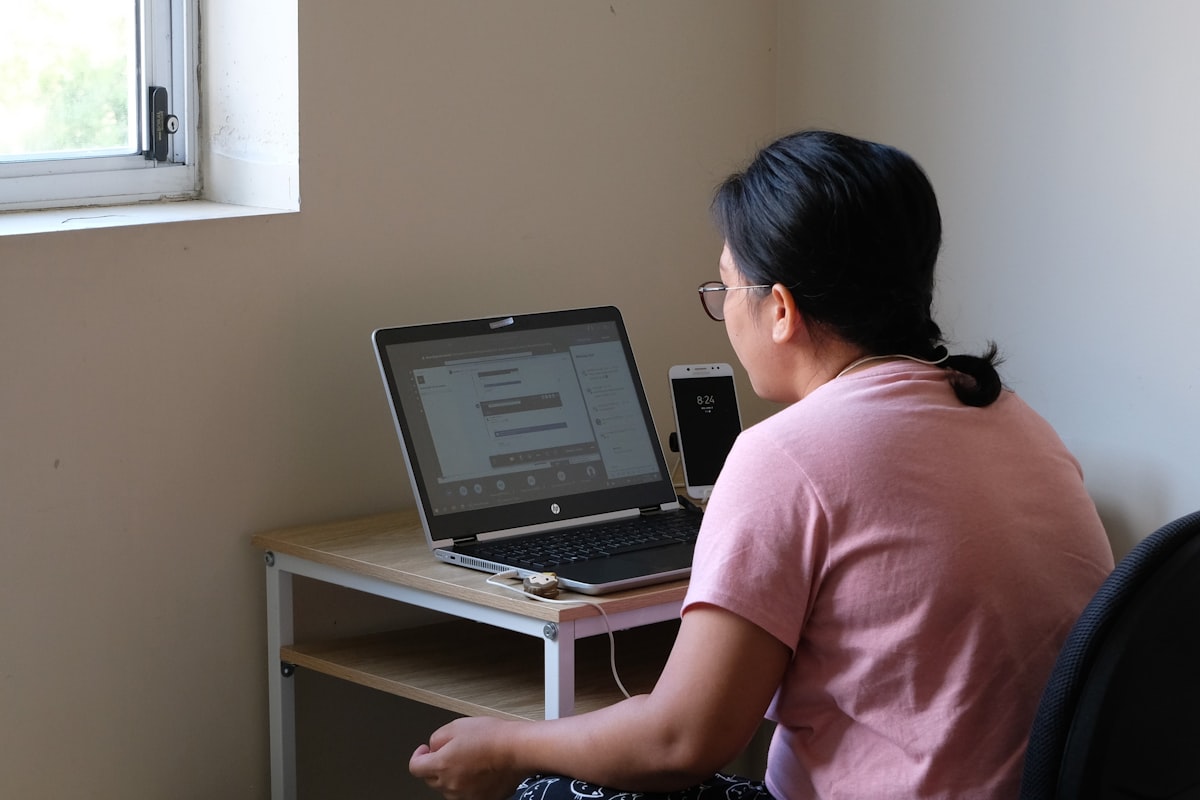

The student application is accessible at app.getrbttraining.com. After purchasing a product, students log in here to access all course content, practice exams, and their certificate.
Main Areas
My Content
The home area of the student application. It lists all products the student has purchased and provides quick access to each one.
Each course card displays:
- Course name and status (active, completed, archived)
- Days remaining (out of 180)
- Overall progress indicator
- Direct link to continue where the student left off
Video Course (RBT Course)
The primary learning environment for students enrolled in the full 40-hour RBT video course. Organized into topics that must be completed in sequence.
Each topic contains three activity areas:
- Video — Watch the lesson video
- Quiz — Answer topic-specific questions
- Q&A — Ask the AI study assistant questions about the topic
Video Player
The video player streams high-quality HLS video content securely from AWS CloudFront. It includes:
- Progress marker overlay on the seek bar showing activity segments
- Resume prompt when returning to a partially watched video
- Auto-pause when the browser tab is inactive
- Continuous time-on-task tracking synced with the course hour counter
- A Continue button that skips to the next activity period in long videos
Topic Quiz
After watching a topic video, students unlock the topic quiz. The quiz presents multiple-choice questions related to the video content.
Students can:
- Select and submit answers one at a time
- Request to see the correct answer and explanation after answering
- View quiz results at the end
- Reset the quiz to attempt it again
Passing the quiz is required to unlock the next topic.
Q&A (Study Assistant)
Available after passing the topic quiz, the Q&A area allows students to ask the AI study assistant questions about the current topic. See AI Study Assistant for full details.
Practice Exams
Students who purchase standalone practice exams or a bundle access them directly from My Content. Each exam:
- Opens in a dedicated timed exam interface
- Counts down from 90 minutes
- Allows one answer submission per question
- Shows results when time expires or all questions are answered
Final Exam
Available after completing all course topics. The final exam is the last step before certificate eligibility. See Practice Exams for full scoring and timing details.
Results Page
After completing the final exam, students are directed to a results page that shows:
- Total points earned (out of 250)
- Pass or fail status
- Points per question
- Option to reset and retake the exam if failed
BACB Number Entry
Once the final exam is passed, students are prompted to enter their BACB number. This number appears on the certificate of completion. Students who do not yet have a BACB number can skip this step and return later.
Certificate Download
After meeting all eligibility requirements, students can download their digital PDF certificate of completion directly from the application. See Certificate Generation for the full list of requirements.
Eligibility Verification
Before accessing course content, students must complete an eligibility step by uploading proof of:
- Being at least 18 years of age
- Holding a high school diploma or equivalent
An administrator reviews and validates the uploaded documents. Course content is unlocked after validation is confirmed.
Language Switcher
Students can switch between English and Spanish at any time using the language selector in the course header. All video content, quiz questions, and interface elements are available in both languages.
Navigation Flow
My Content
  └── Course Card
        ├── Topic 1
        │     ├── Video
        │     ├── Quiz
        │     └── Q&A
        ├── Topic 2
        │     ├── Video
        │     ├── Quiz
        │     └── Q&A
        ├── ... (additional topics)
        ├── Final Exam
        ├── Results
        ├── BACB Number
        └── Certificate Download
Topics are unlocked progressively. Each must be completed before the next becomes available.